A whole contact center. Set up in about 10 minutes. See how to get going ↗
Aivagenta™ / Use Cases

What could your next
working day look like?

Explore 23 ways to connect sales, service and operations. Start with a job you need to get done, then see the product tools and a practical example.

The scenarios below illustrate potential workflows. Product screens show the Aivagenta™ platform; configuration and access determine the tools available to your team.

23 workflows to explore

01 / Growth

Find prospects while you focus on the business.

Search the open web for organizations and contacts using a chosen location and business niche; save repeat searches with AUT◎PİLOT™.

Picture this

A local commercial cleaner schedules a search for offices in its service area, then reviews the organizations and contacts before outreach.

CloudScout™ Marketing
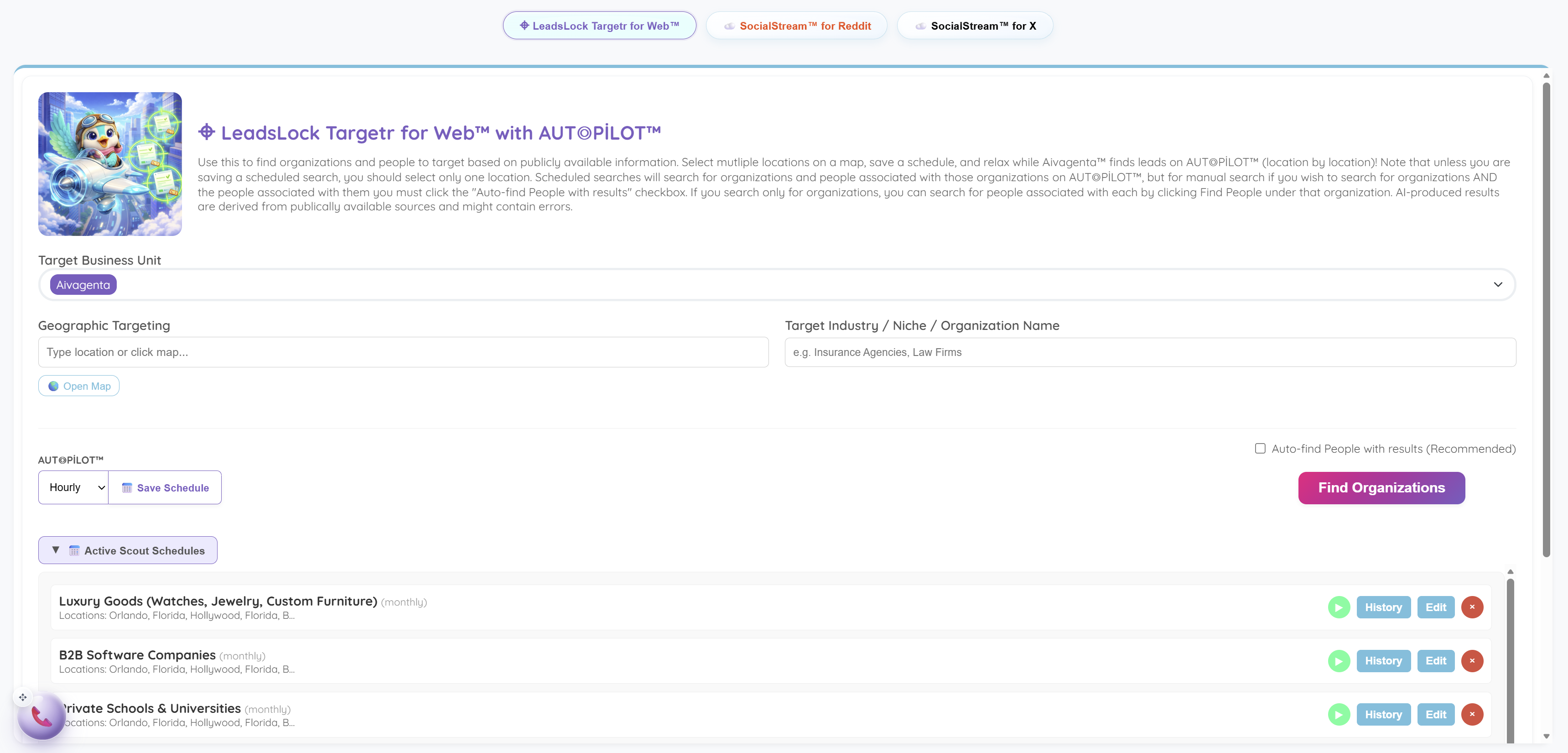
Lead research setup with geographic and industry targeting, an option to find associated people and scheduled searches.View example screen ↗
02 / Growth

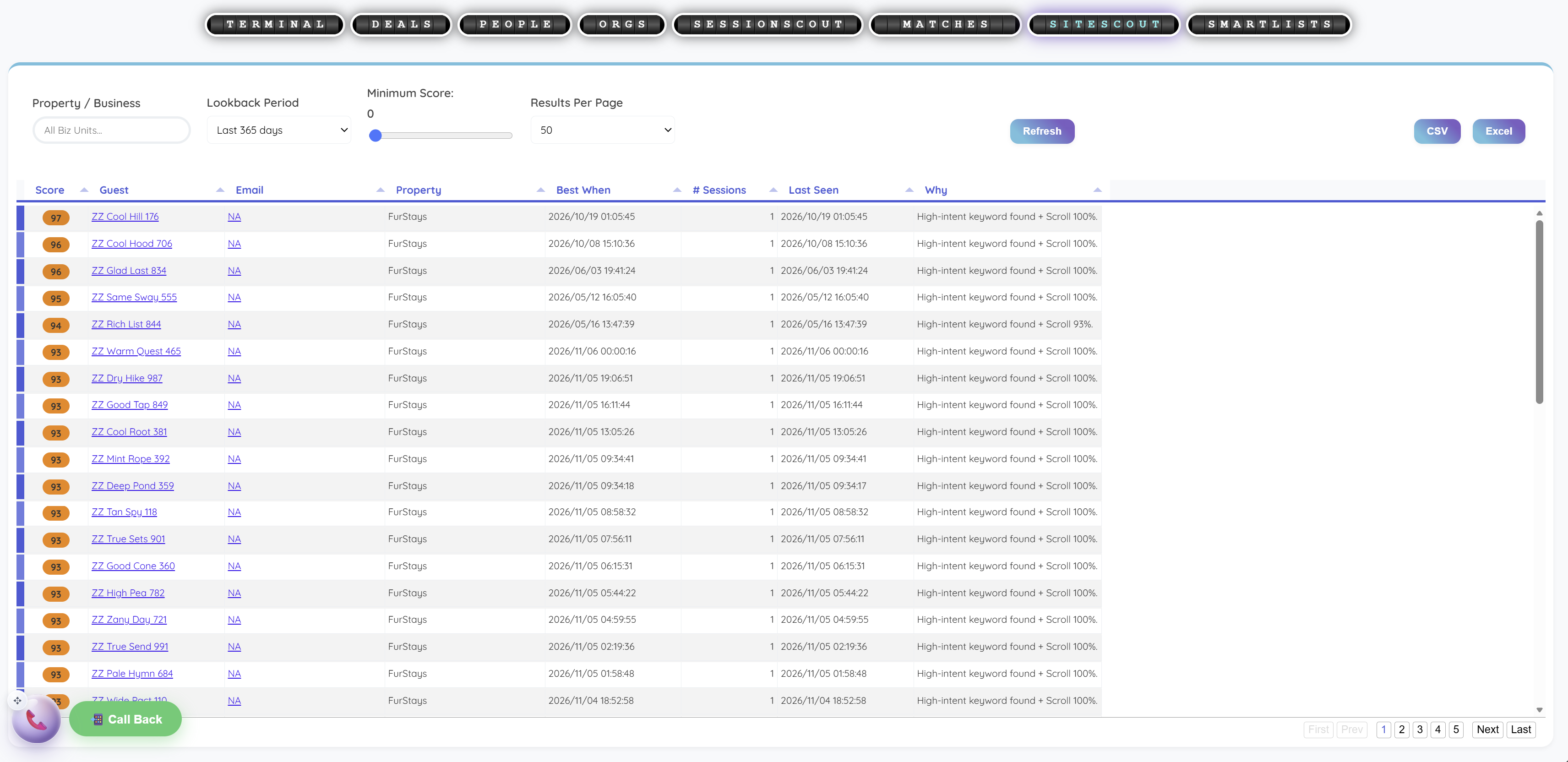
Prioritize visitors who may be ready to buy.

Use live website activity, scrolling and interaction signals to help prioritize visitors for a timely sales conversation.

Picture this

A visitor returning to a service pricing page rises in the intent list, prompting the team to offer help choosing an option.

SiteScout Raîdar™ · HeatScore™

SiteScout Raîdar™ ranks website guests by score and shows sessions, last activity and reasons such as high-intent keywords and scroll depth.View example screen ↗
03 / Growth

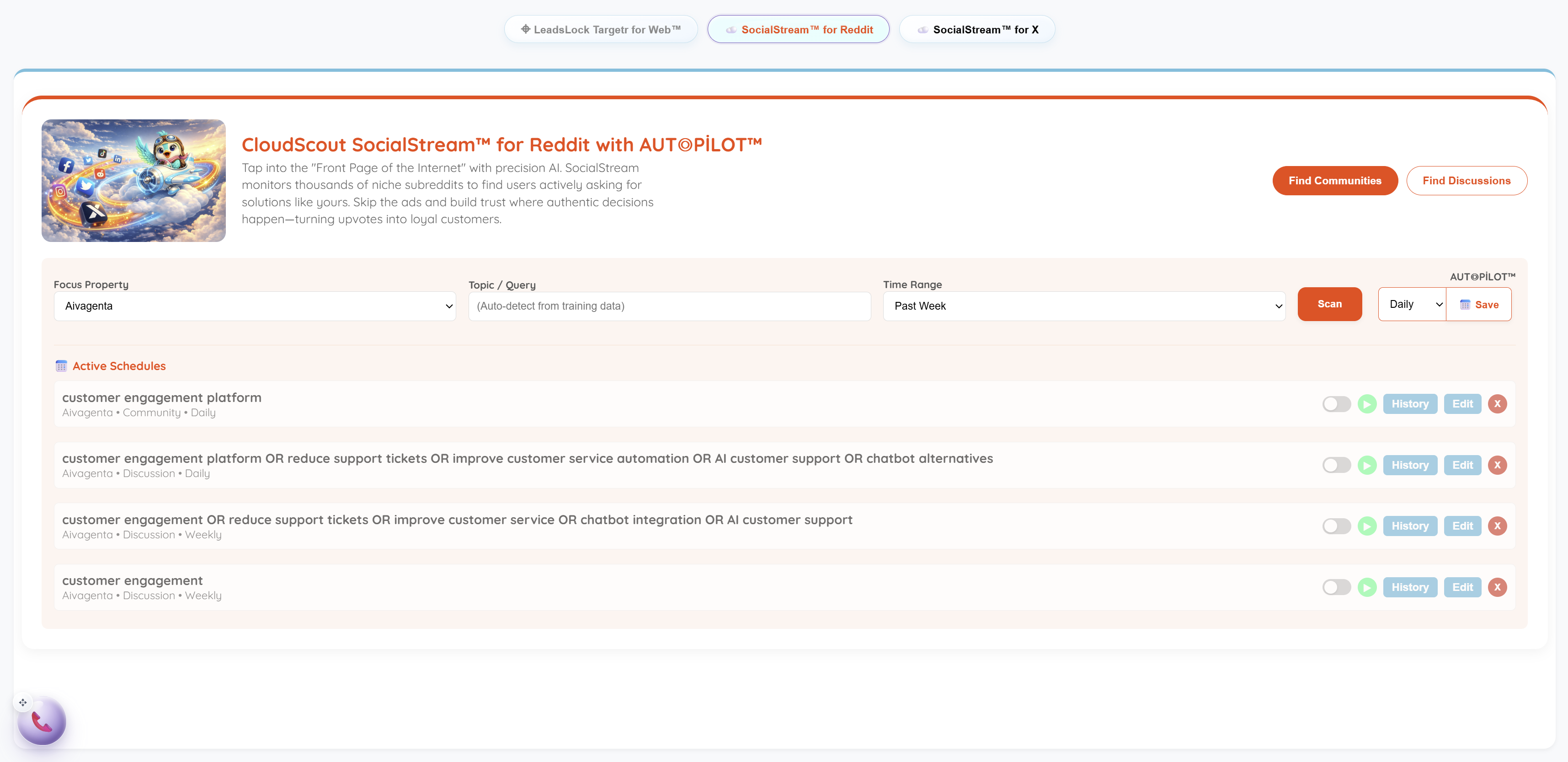
Find people asking for the service you offer.

Find relevant Reddit and social conversations using service-related keywords so the team can review opportunities and decide how to respond.

Picture this

An IT support company reviews a public discussion asking for help migrating office computers.

SocialStream™

SocialStream™ for Reddit community and discussion searches with daily or weekly scan schedules and history controls.View example screen ↗
04 / Conversations

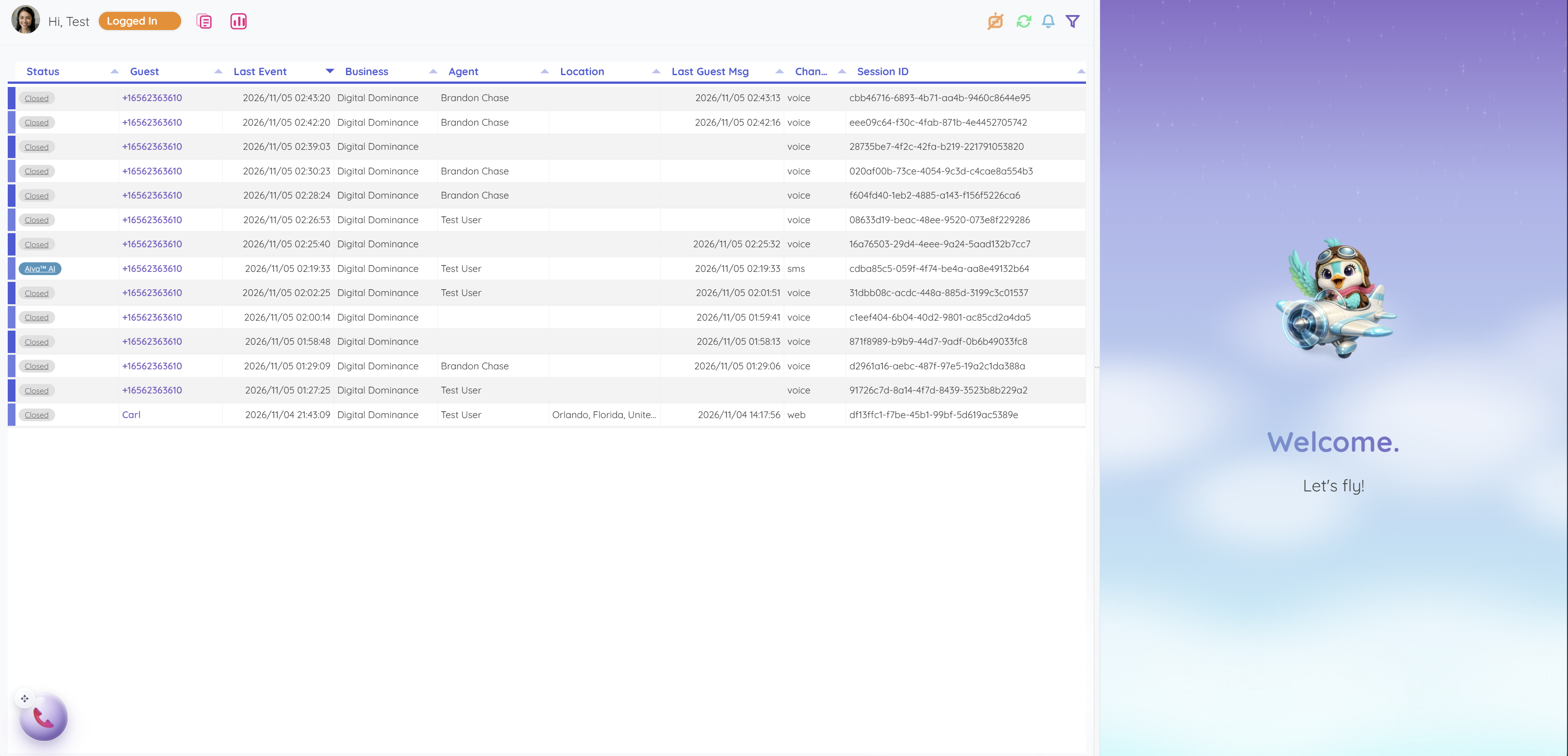
Connect the conversation and the work around it.

Bring live chat, ticketing, CRM and configured voice channels into a shared workspace with routing and customer context.

Picture this

A solo repair business receives an inquiry, records the contact and turns the request into assigned follow-up work in the same platform.

NaviCom Live™

NaviCom Live™ workspace lists voice, SMS and web sessions with status, business, agent, location and recent activity.View example screen ↗
05 / Sales & CRM

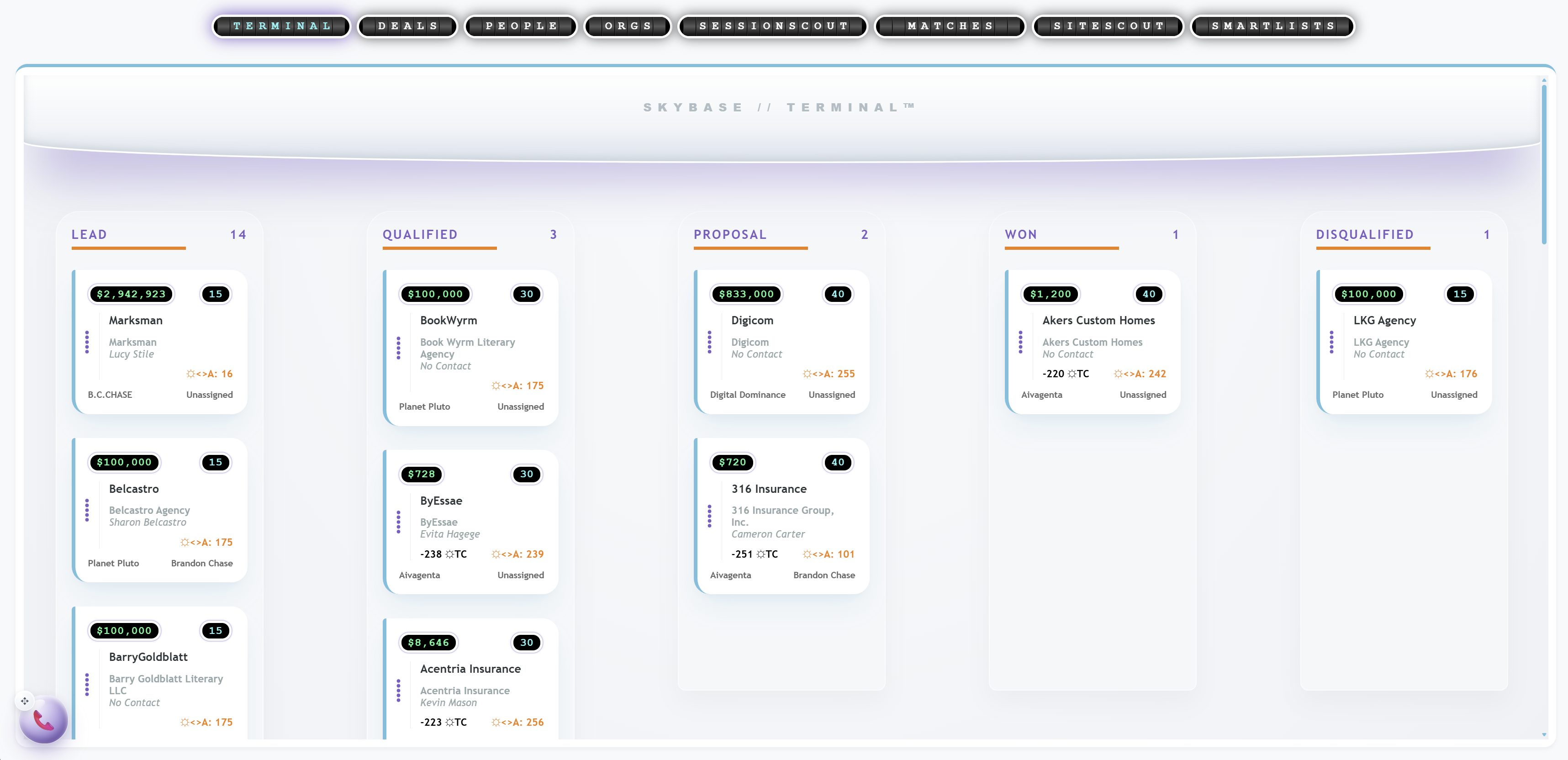
Keep the pipeline moving.

Use the SkyBase Terminal™ to organize deals, and SalesAce™ FlightPlan™ guidance to prepare the next sales action.

Picture this

A sales manager checks which quotes await a decision and assigns the next follow-up to the deal owner.

SkyBase CRM™ · SkyBase Terminal™

Visual deal pipeline organizes opportunities into Lead, Qualified, Proposal, Won and Disqualified stages.View example screen ↗
06 / Sales & CRM

Collect the details without retyping every conversation.

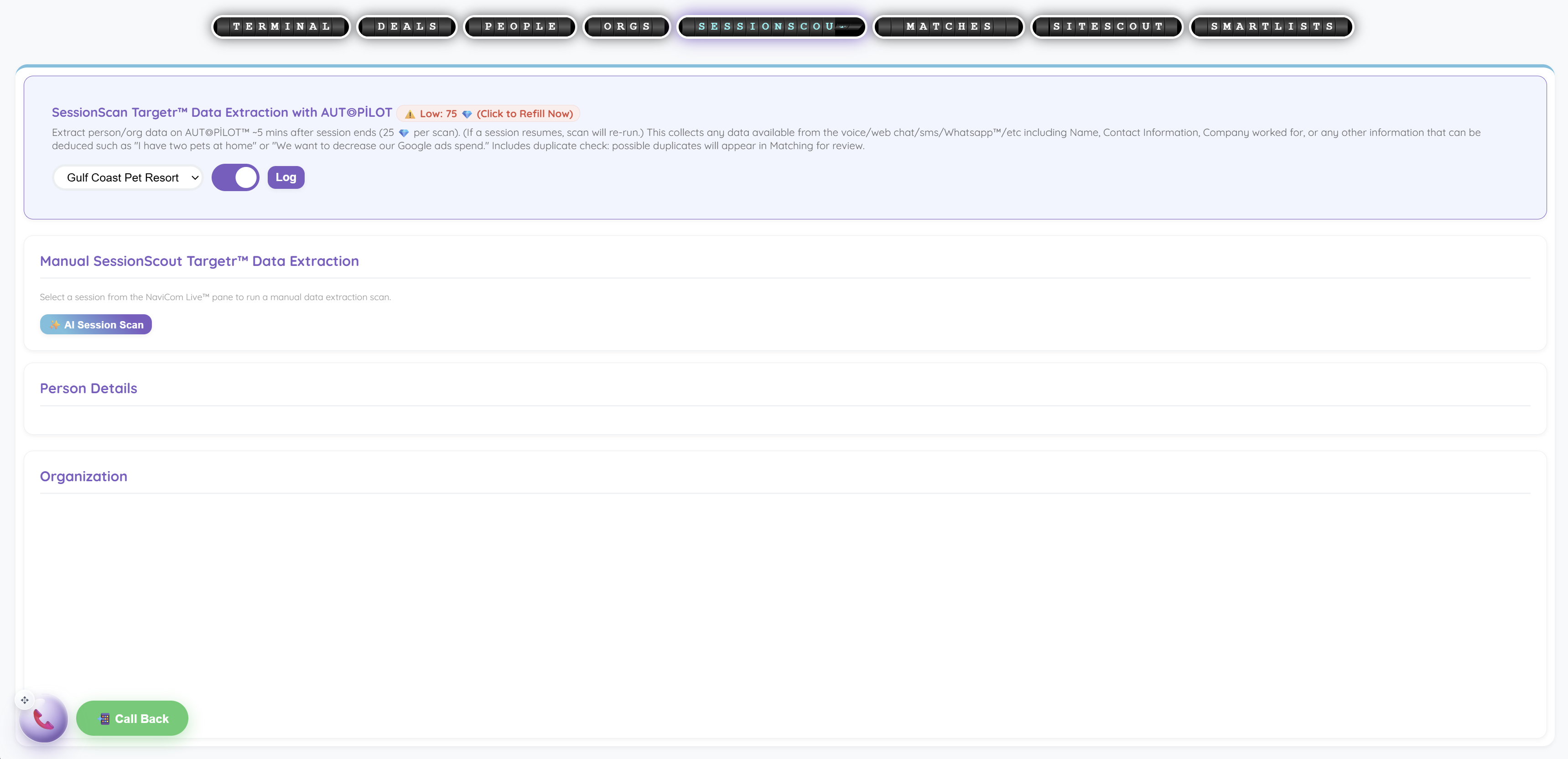
Extract contact information and other relevant details from conversations into CRM records through configured SessionScout Targetr™ automation.

Picture this

After a landscaping inquiry, the team reviews extracted contact details, property location and service interests before using the updated CRM record.

SessionScout Targetr™

SessionScout offers automatic or manual extraction of person and organization details from customer conversations.View example screen ↗
07 / Service & knowledge

Turn business knowledge into a working flow.

Prepare knowledge articles and visual conversation flows from website content and documents, then review the resulting decision trees and research-based guidance.

Picture this

A pet boarding company turns policies and intake documents into a draft inquiry flow and a searchable set of customer answers.

WaiPoint Harbor™ · FliPath™

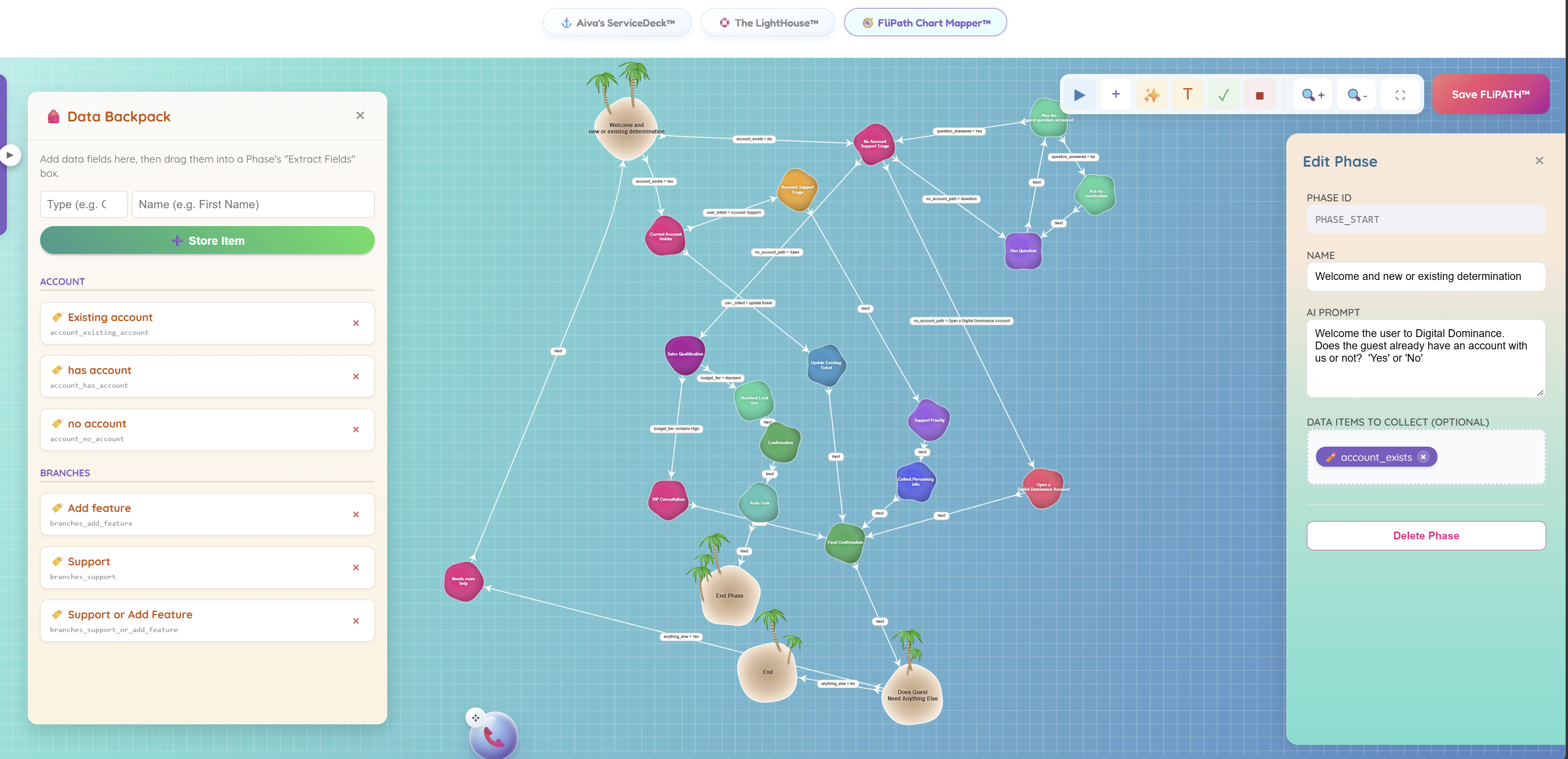
Full workflow view shows the Data Backpack, connected service and sales phases, and the welcome-phase editor.View example screen ↗
08 / Conversations

Offer relevant help before the visitor asks.

Use visitor context and configured engagement rules to offer relevant service guidance, product information or a sales nudge while a guest browses.

Picture this

A guest comparing boarding packages receives a relevant offer to explain room options or booking requirements.

ProActive EngaigeMate™

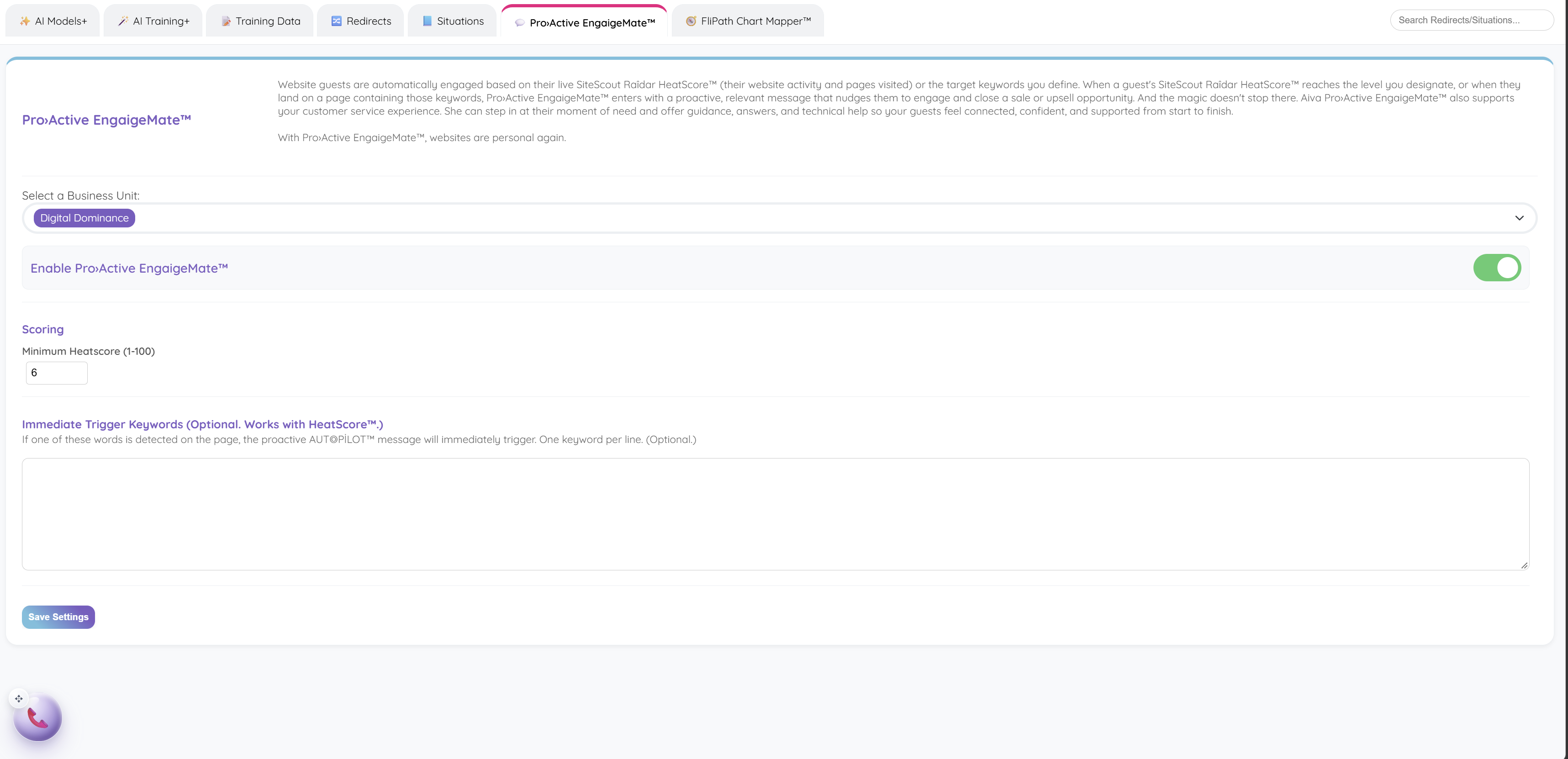
ProActive EngaigeMate™ configuration with a business selector, enable toggle, minimum HeatScore™ and trigger keywords.View example screen ↗
09 / Operations

Find the service patterns worth investigating.

Review SLA bottlenecks, coaching opportunities, sentiment trends and first-contact-resolution issues to identify areas for operational improvement.

Picture this

A supervisor notices recurring delays in billing requests and checks whether queue routing or knowledge gaps contribute.

DeepSky Analytics™

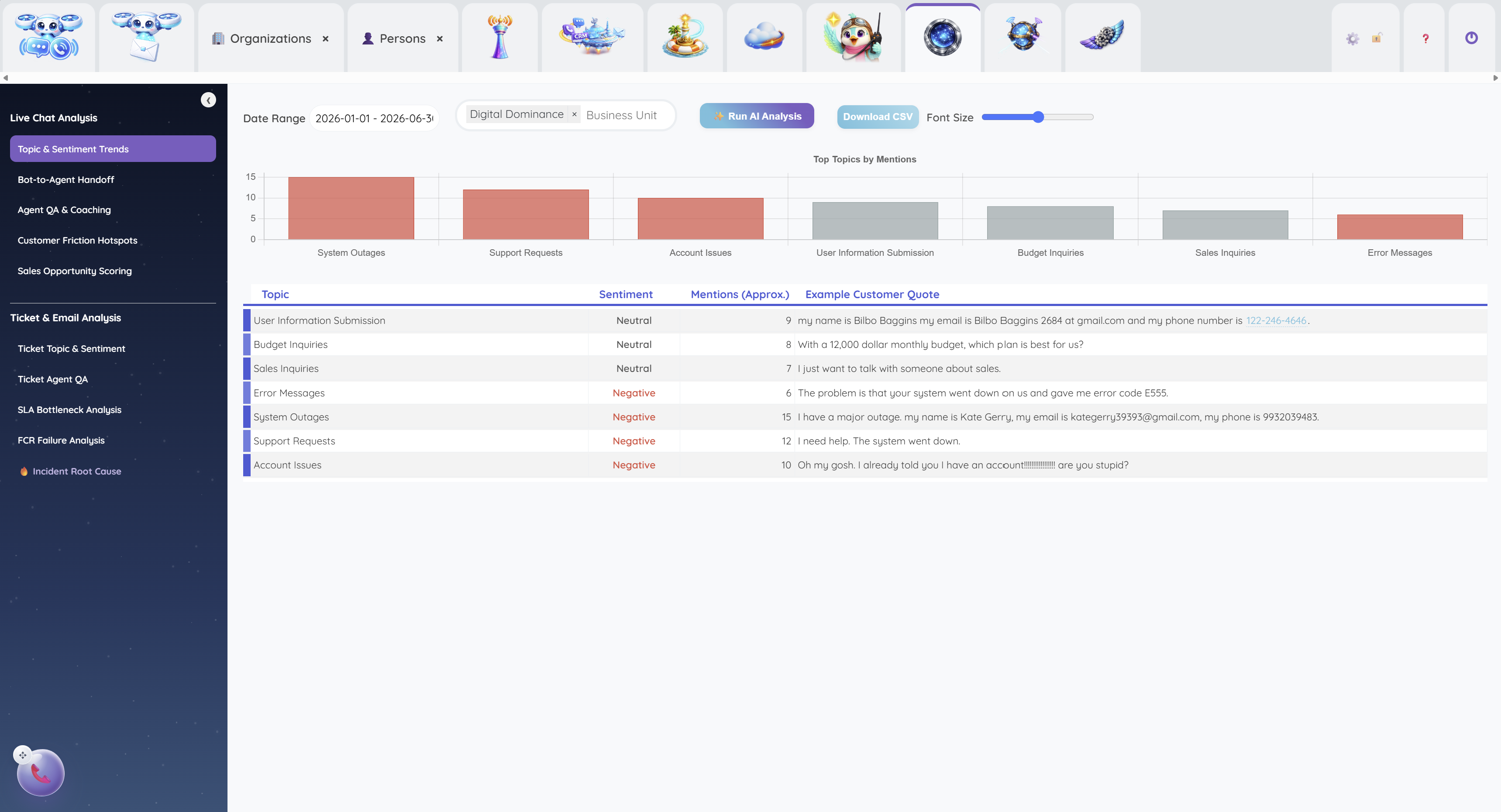
AI analysis of conversation topics and sentiment, with example quotes and coaching, friction and opportunity reports.View example screen ↗
10 / Growth

Bring web and social research into one workflow.

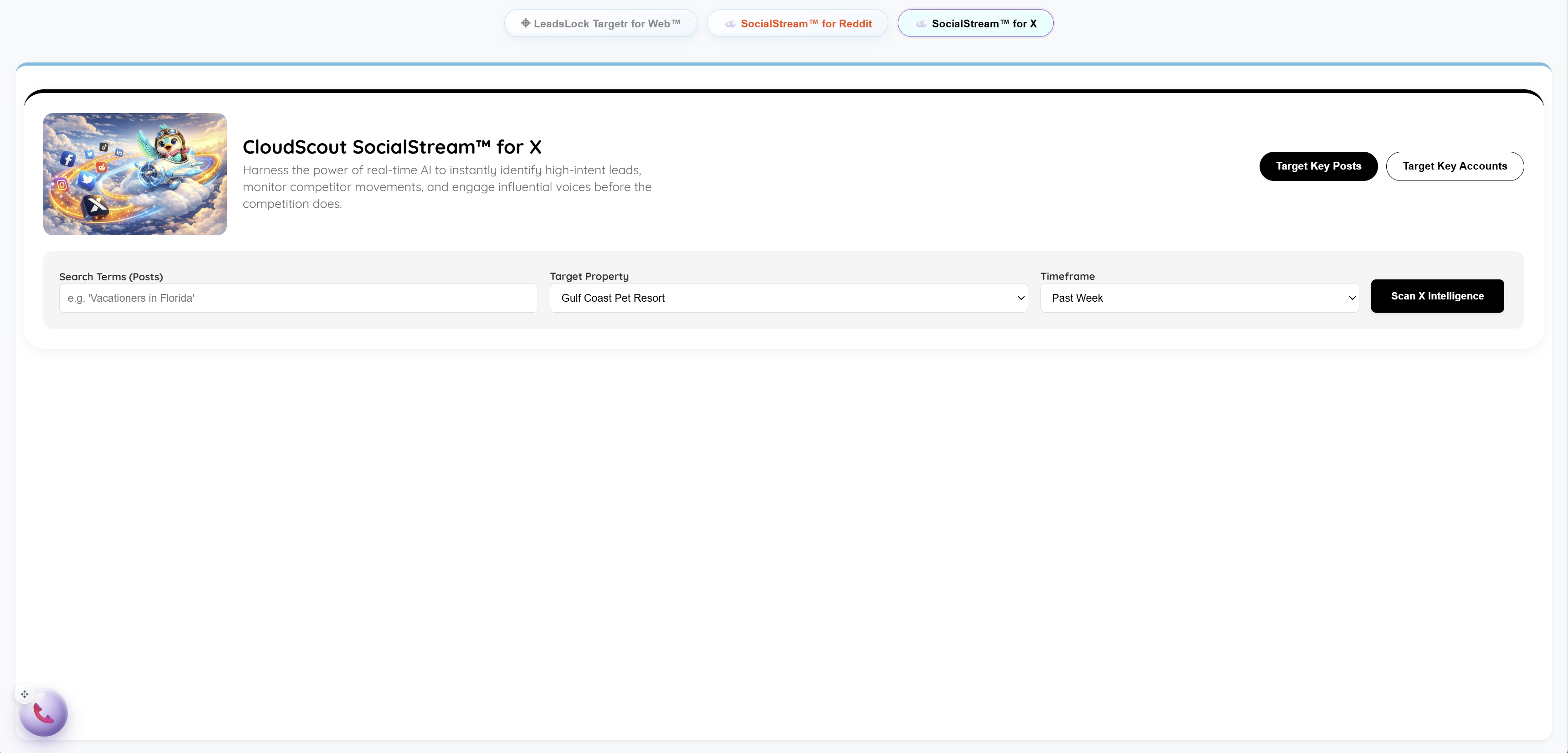
Use CloudScout™ Marketing to research prospects through Reddit, X and open-web searches, including scheduled searches where configured.

Picture this

A business software seller reviews web organization searches alongside public discussions about replacing an existing tool.

CloudScout™ Marketing

SocialStream™ for X search controls for target posts or accounts, search terms, target business and timeframe.View example screen ↗
11 / Conversations

Give the agent the context behind the question.

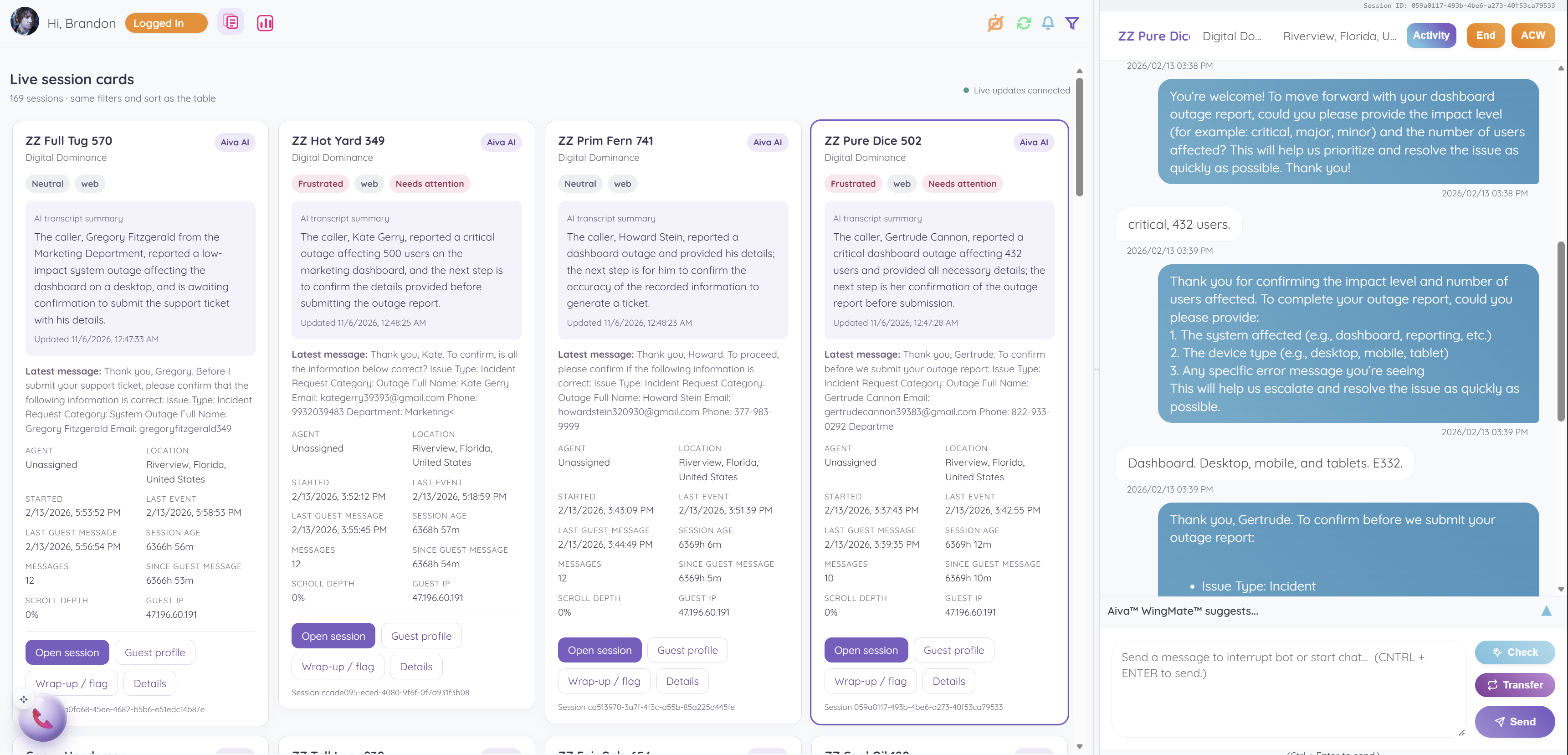
Show agents available website activity, location, prior guest details, profile information, waiting timers and intent summaries alongside the live conversation.

Picture this

Before answering a hotel guest, the agent sees the room page being viewed and previous inquiry context.

NaviCom Live™

NaviCom Live™ session cards show sentiment, transcript summaries and session actions alongside the selected customer conversation.View example screen ↗
12 / Conversations

Bring a person into the conversation when needed.

Follow bot conversations, take over when needed, transfer between agents and configure alerts and routing by department, skill, property or urgency.

Picture this

An agent takes over a complex technical question from Aiva™ and transfers it to a colleague with the right skill.

NaviCom Live™

NaviCom Live™ session cards show sentiment, transcript summaries and session actions alongside the selected customer conversation.View example screen ↗
13 / Conversations

Make an email part of the customer workflow.

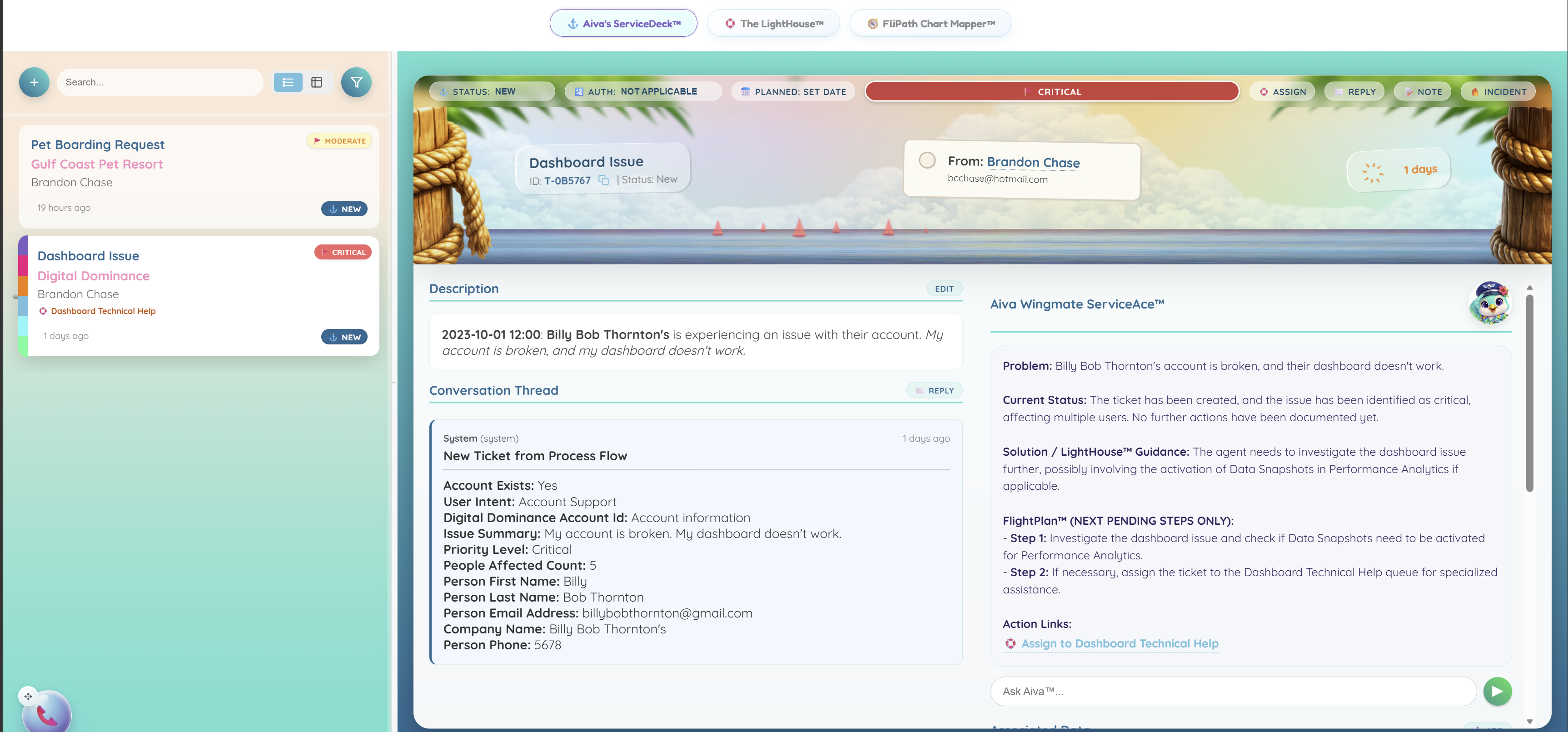
Connect email threads to AI reply suggestions, CRM data collection and ticket creation with categorization and relevant guidance.

Picture this

A customer emails about a missed appointment; the team creates a service ticket and reviews a suggested response with the customer history at hand.

NaviCom Mail™

Critical ticket view shows structured intake, a conversation thread and Aiva WingMate™ ServiceAce™ guidance with pending steps.View example screen ↗
14 / Growth

Help while the visitor is still exploring.

Review current page context, last-seen information and stored HeatScore™ signals to identify visitors who may benefit from timely assistance.

Picture this

A visitor returns to a quote page after an earlier inquiry, and an agent reviews their browsing context before starting a conversation.

SiteScout Raîdar™

SiteScout Raîdar™ ranks website guests by score and shows sessions, last activity and reasons such as high-intent keywords and scroll depth.View example screen ↗
15 / Sales & CRM

Prepare the next customer follow-up with context.

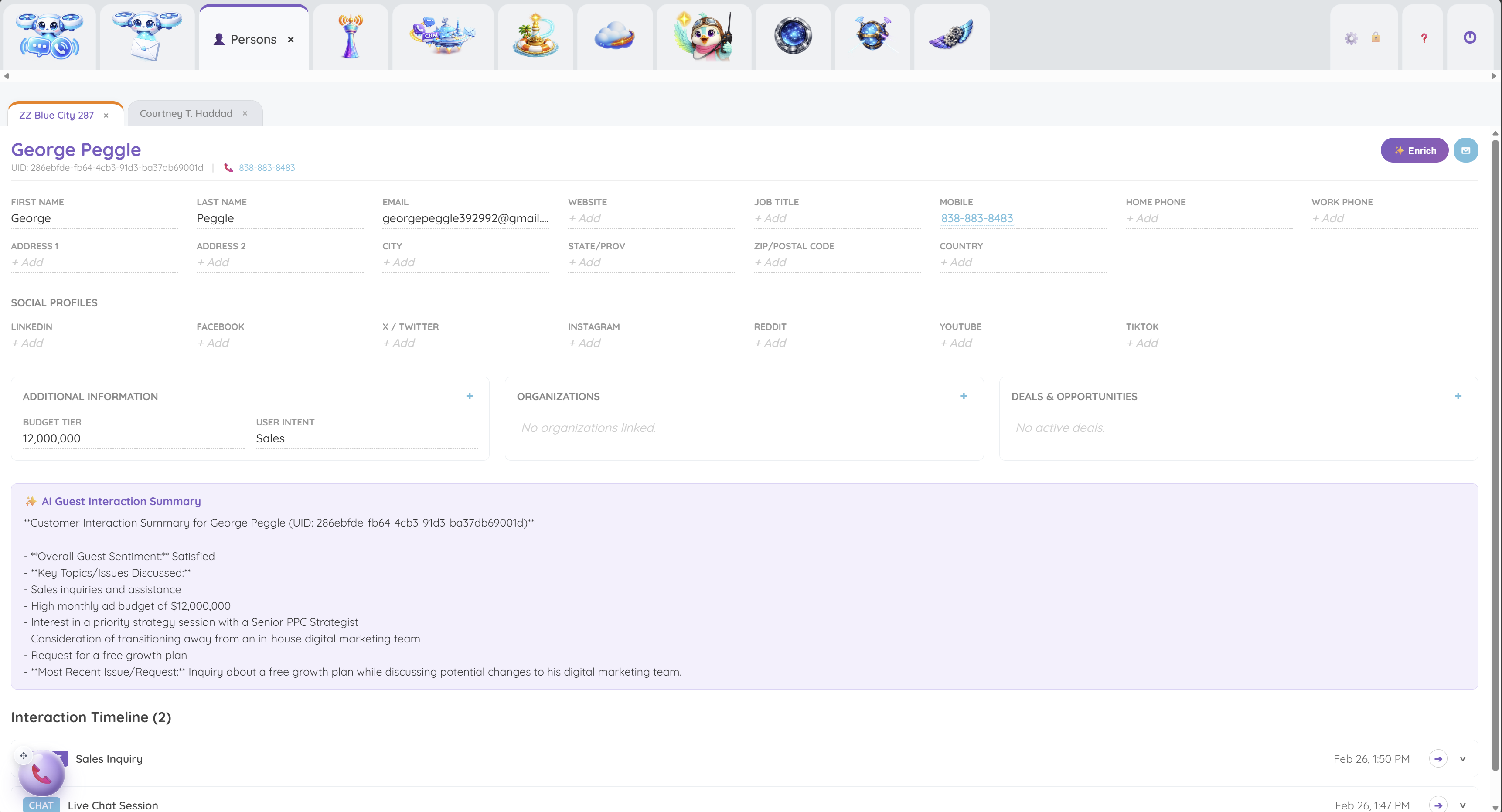
Gather contact details, communication history, sales guidance, local context, events, invitations, meetings, follow-ups and checkpoints in a focused deal workspace.

Picture this

Before a client renewal call, a representative reviews recent messages, the scheduled meeting and the next agreed checkpoint.

SkyBase FliDeck™

Customer profile combines contact fields, intent and budget attributes, an AI interaction summary and conversation history.View example screen ↗
16 / Sales & CRM

Find the customers and opportunities that need attention.

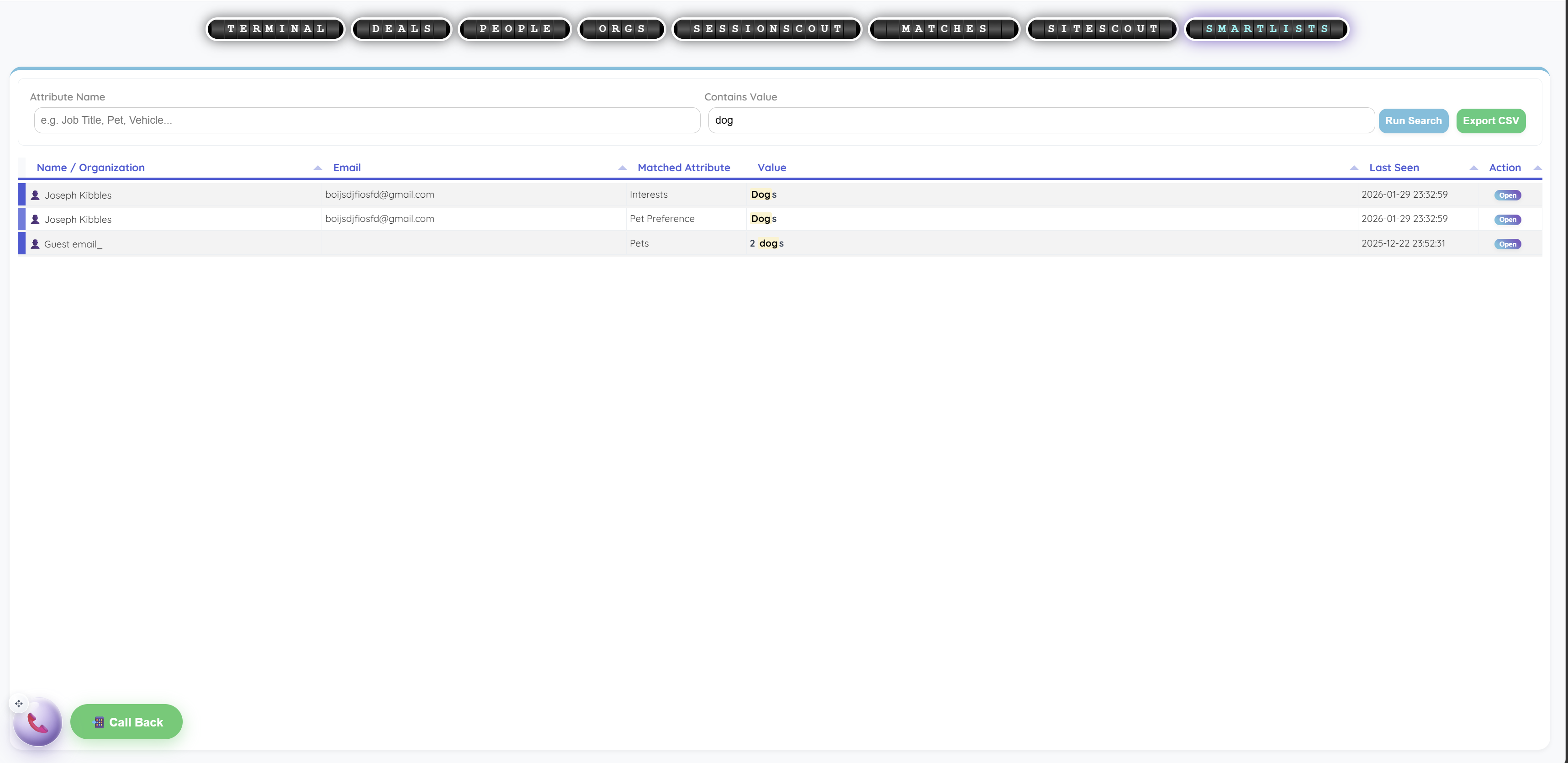
Organize people, organizations and deals using the SkyBase Terminal™, SmartLists™, matching, import/export and signals such as deal value, close date, recent activity and Altitude Score™.

Picture this

A sales team filters inactive high-value proposals, checks suggested contact matches and assigns follow-up tasks.

SkyBase CRM™ · SmartLists™

SmartLists™ search finds people by stored attributes and values, with matched attributes, last-seen dates and CSV export.View example screen ↗
17 / Service & knowledge

Turn support intake into an owned next action.

Create structured tickets with categories, authorization, planned dates, ownership, escalation, threads, notes and associated information, then review ServiceAce™ resolution guidance and available actions.

Picture this

An outage report becomes a critical ticket with the affected user count, an assigned queue and suggested next investigation steps.

WaiPoint ServiceDeck™ · ServiceAce™

Critical ticket view shows structured intake, a conversation thread and Aiva WingMate™ ServiceAce™ guidance with pending steps.View example screen ↗
18 / Service & knowledge

Build a knowledge base from the know-how you have.

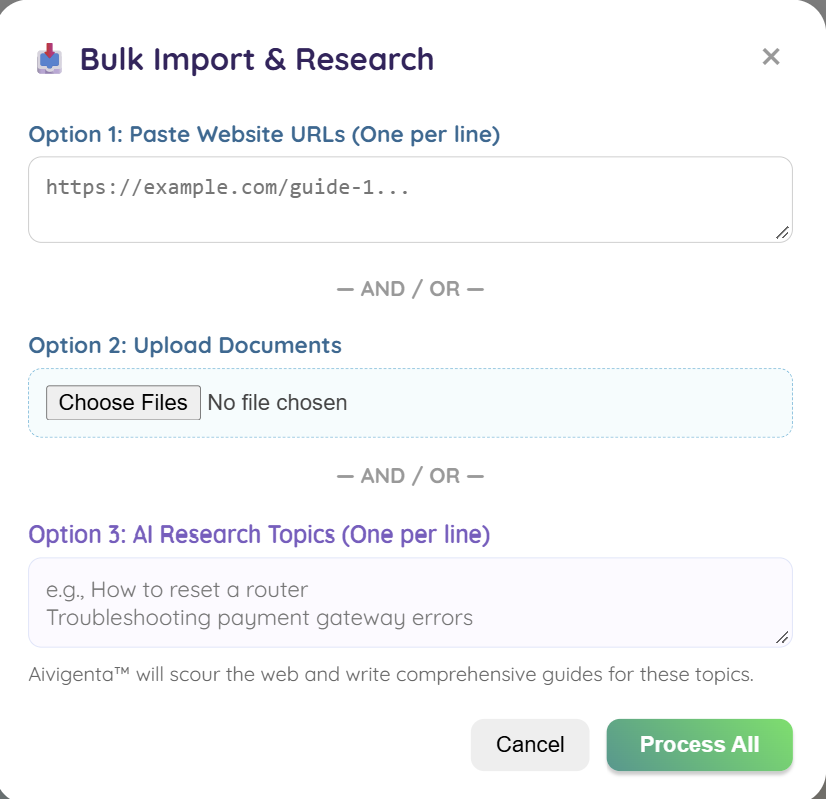
Draft bulk knowledge articles from URLs, uploaded documents and research topics; organize the content with suggested tags and categories.

Picture this

A managed service provider imports setup guides and asks for draft troubleshooting articles, then edits and approves them.

The LightHouse™

Bulk Import and Research dialog accepts website URLs, uploaded documents or AI research topics to prepare knowledge-base guides.View example screen ↗
19 / Service & knowledge

Map the customer journey from question to action.

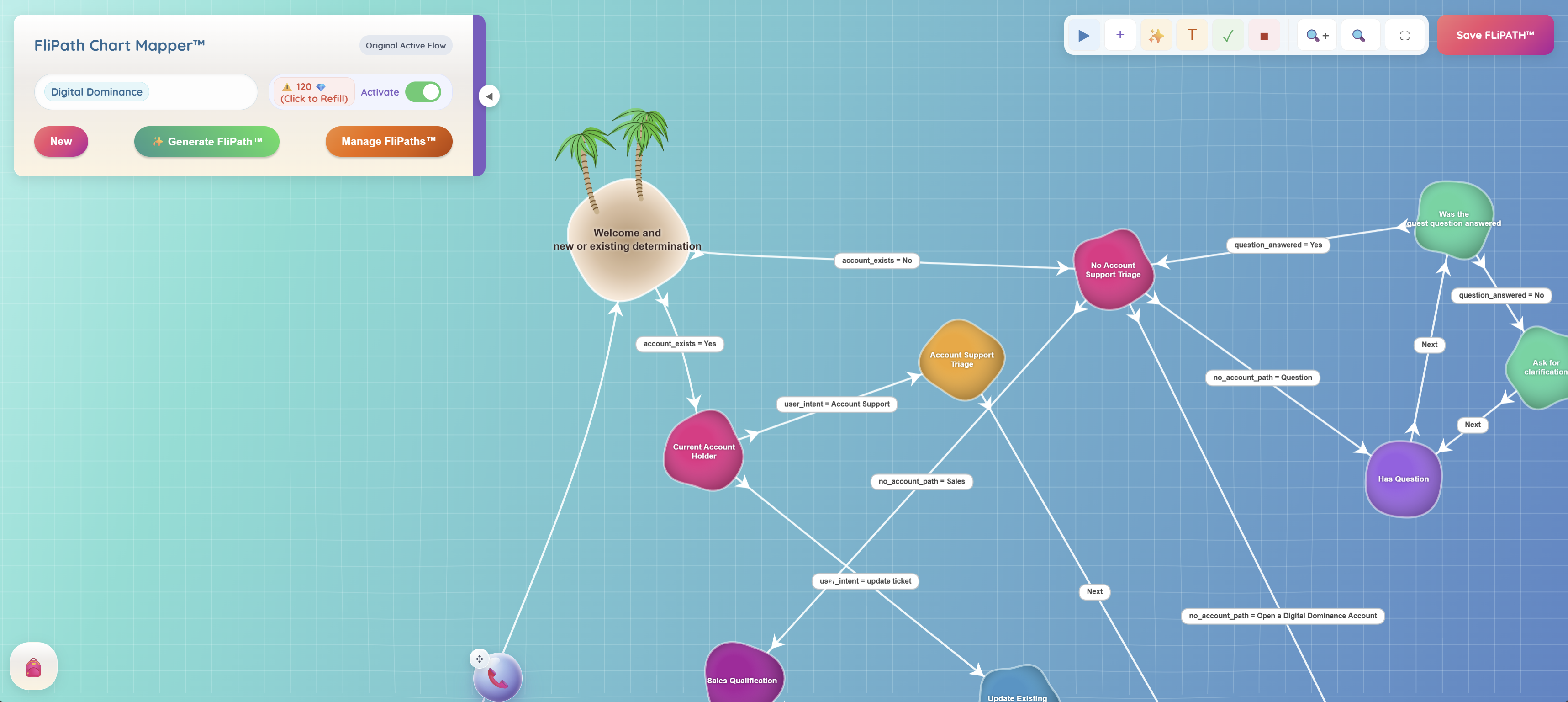
Generate and edit visual conversation flows covering information gathering, talking points, decision branches, department routing, ticket generation and configured API actions.

Picture this

A home-service intake flow gathers the job location, separates urgent repairs from estimates and creates the appropriate ticket.

FliPath Chart Mapper™

FliPath Chart Mapper™ connects welcome, account support, sales and question-handling branches on a visual canvas.View example screen ↗
20 / Conversations

Train the AI around your business.

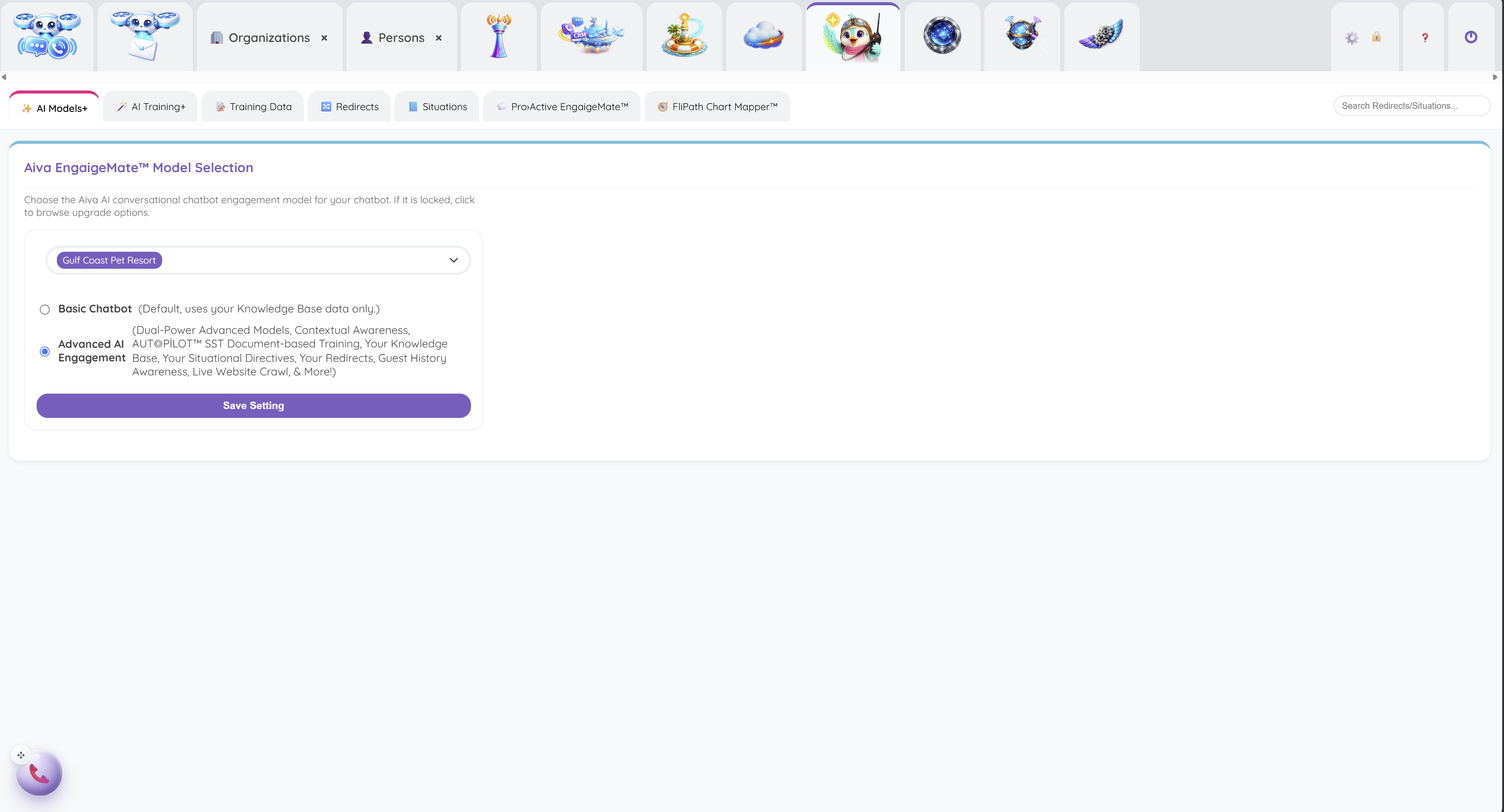
Choose the AI model and training sources, and configure keyword redirects, situational directives, HeatScore™ thresholds, page triggers and proactive engagement rules.

Picture this

A business trains Aiva™ on its policies, adds a booking shortcut for booking questions and specifies when sensitive issues should reach a person.

Aiva EngaigeMate™ CommsBot™

Business-specific model settings let the owner choose a basic knowledge-base chatbot or Advanced AI™ Engagement.View example screen ↗
21 / Operations

Investigate where service starts to slow down.

Review analysis of bot-to-agent handoffs, agent QA and coaching, customer friction, sales opportunities, ticket and email sentiment, SLA delays, FCR failures and incidents.

Picture this

A support lead compares repeated handoffs with negative ticket sentiment and uses the findings to plan coaching or workflow changes.

DeepSky Analytics™

AI analysis of conversation topics and sentiment, with example quotes and coaching, friction and opportunity reports.View example screen ↗
22 / Operations

Take operational reports into your next review.

Report on sessions, property performance, channel mix, abandonment, messages, tickets, resolution, queues, priorities, agent performance and activity, availability, state changes and guest records.

Picture this

A contact-center manager exports monthly session and ticket volumes to compare workloads across business units and queues.

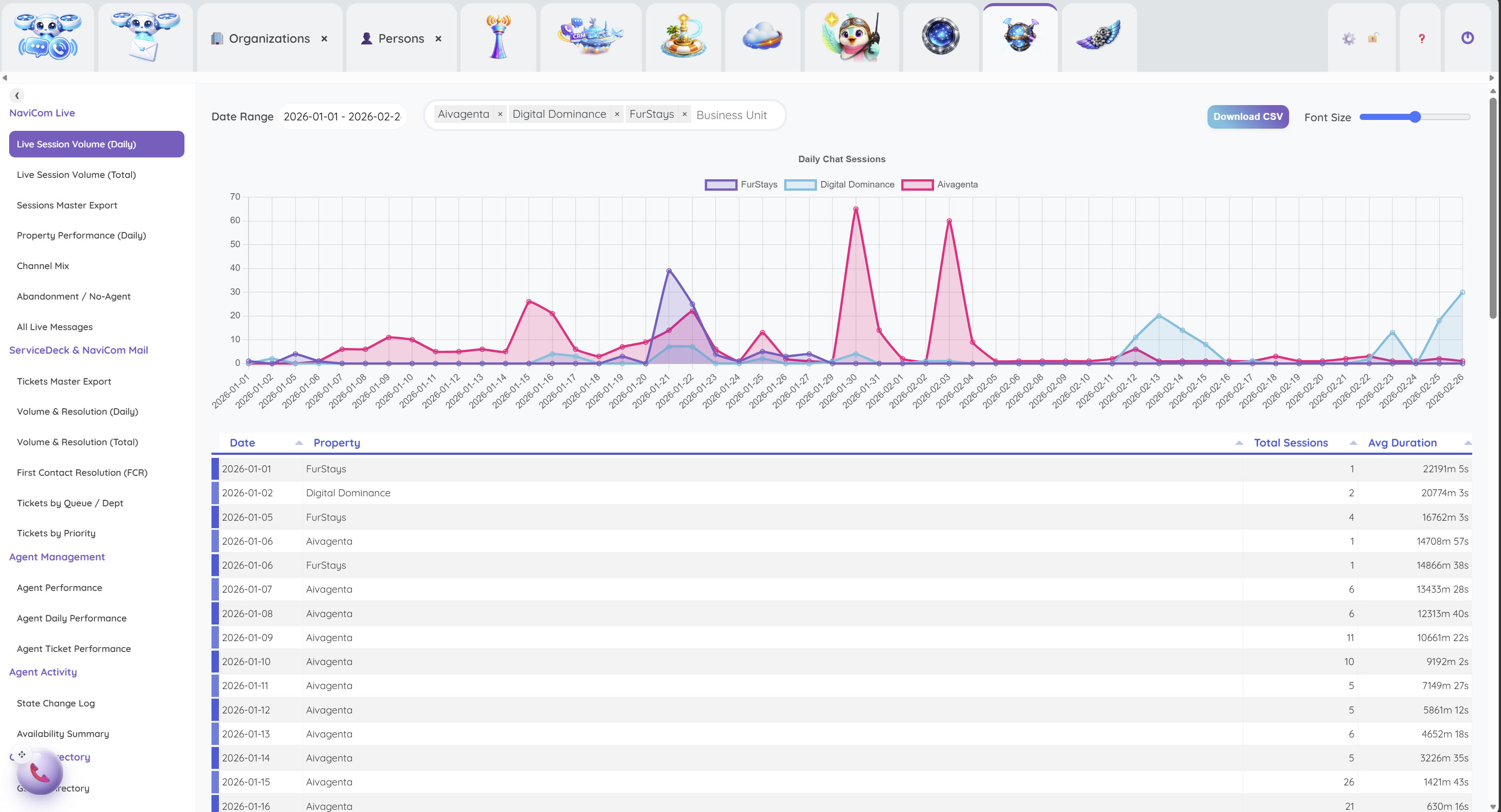
OmniLogs™ Reporting

Daily session reporting with business filters, a multi-business chart, report navigation and CSV export.View example screen ↗
23 / Operations

Organize the people and settings behind the operation.

Manage users and properties, routing and skills, chat and email settings, professional services, branding, Promo Pops™, SMS, WhatsApp, integrations, Diamond credits, privacy controls and installation from the administration area.

Picture this

An administrator adds a new business unit, assigns its agents, applies widget branding and completes the required channel setup.

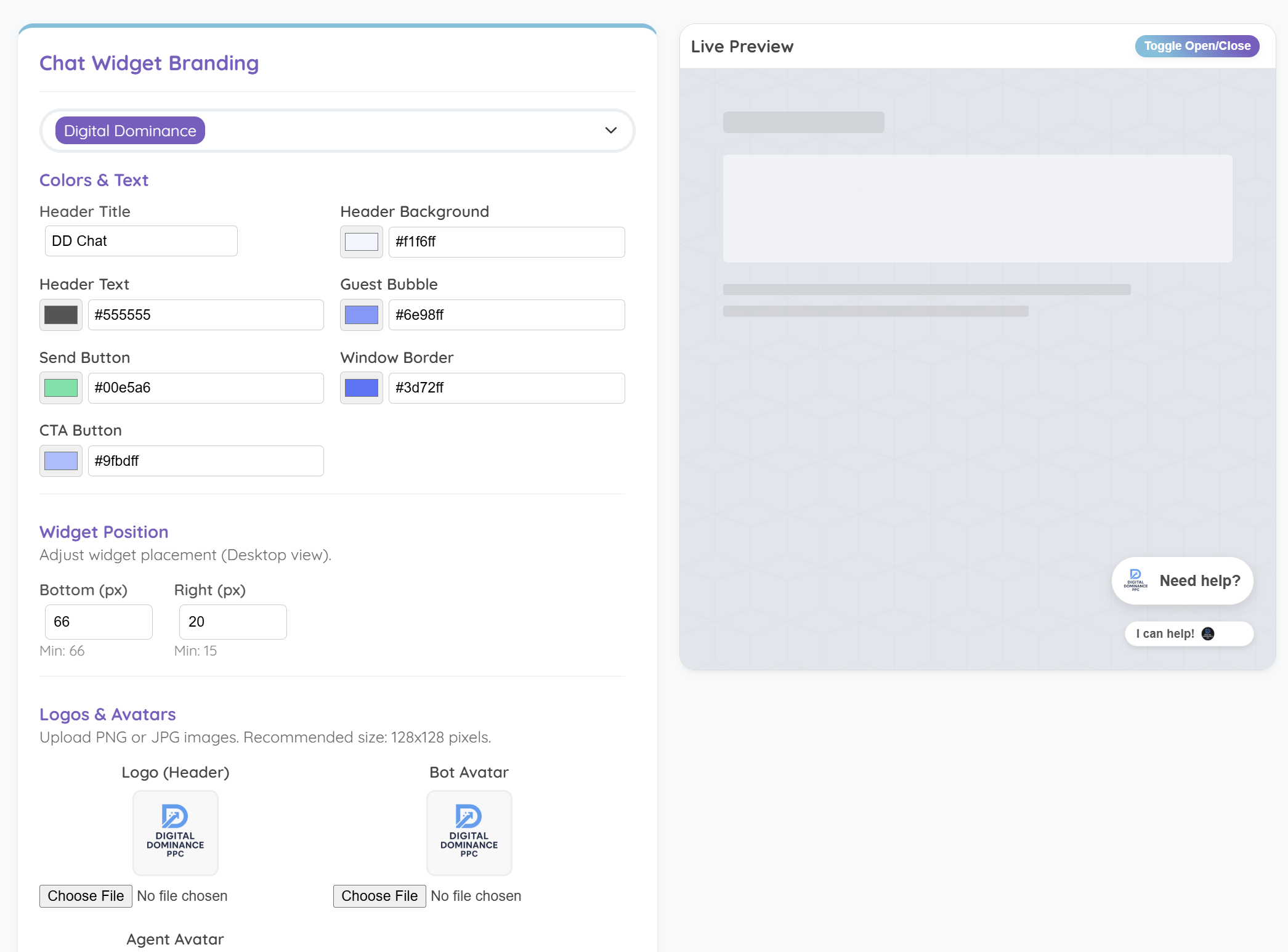
FleetOps Admin™

Chat widget branding settings for colors, text, logos and placement alongside a live website preview.View example screen ↗

Your next customer is about to get in touch.

Give them a useful first answer. Give yourself a clearer next step.

Let’s get you open